> For the complete documentation index, see [llms.txt](https://psu-sis-team.gitbook.io/sis/llms.txt). Markdown versions of documentation pages are available by appending `.md` to page URLs; this page is available as [Markdown](https://psu-sis-team.gitbook.io/sis/manual/en/study/timetable.md).
# Timetable
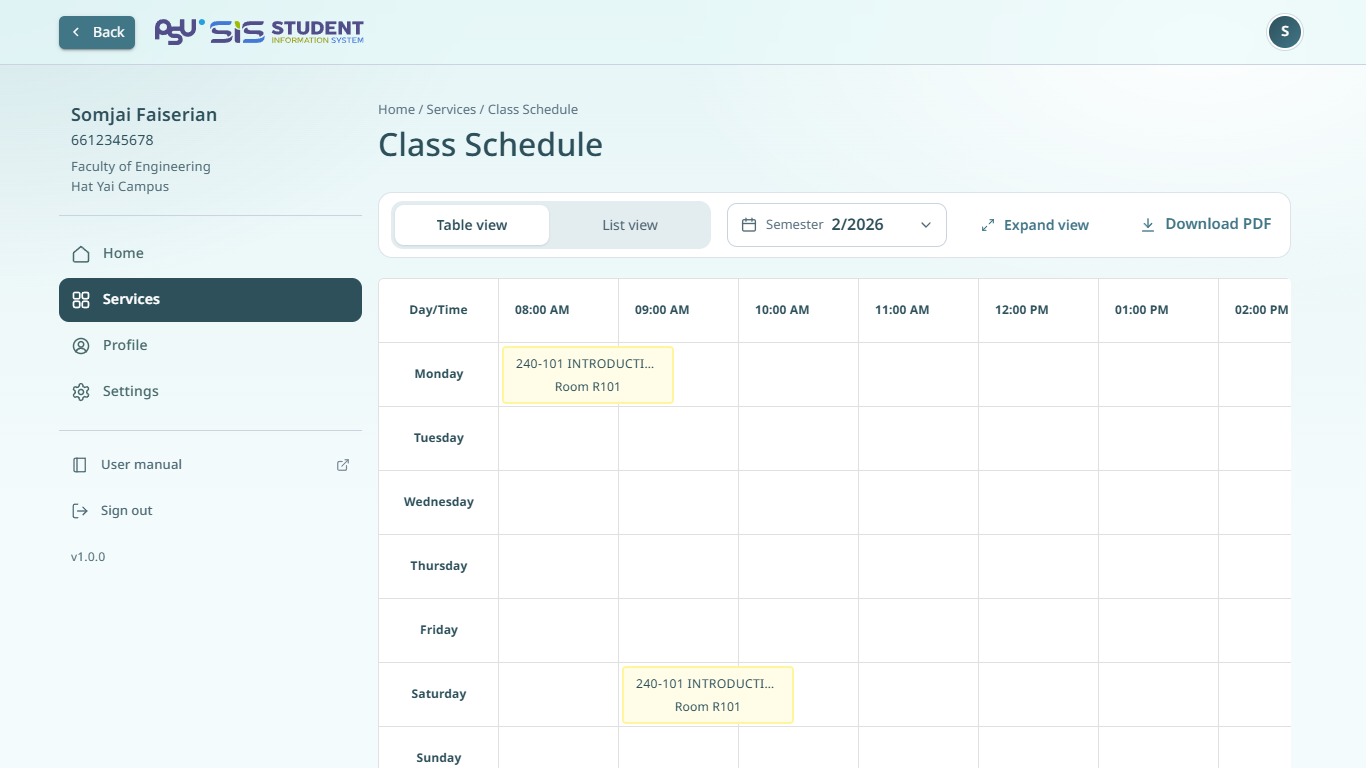
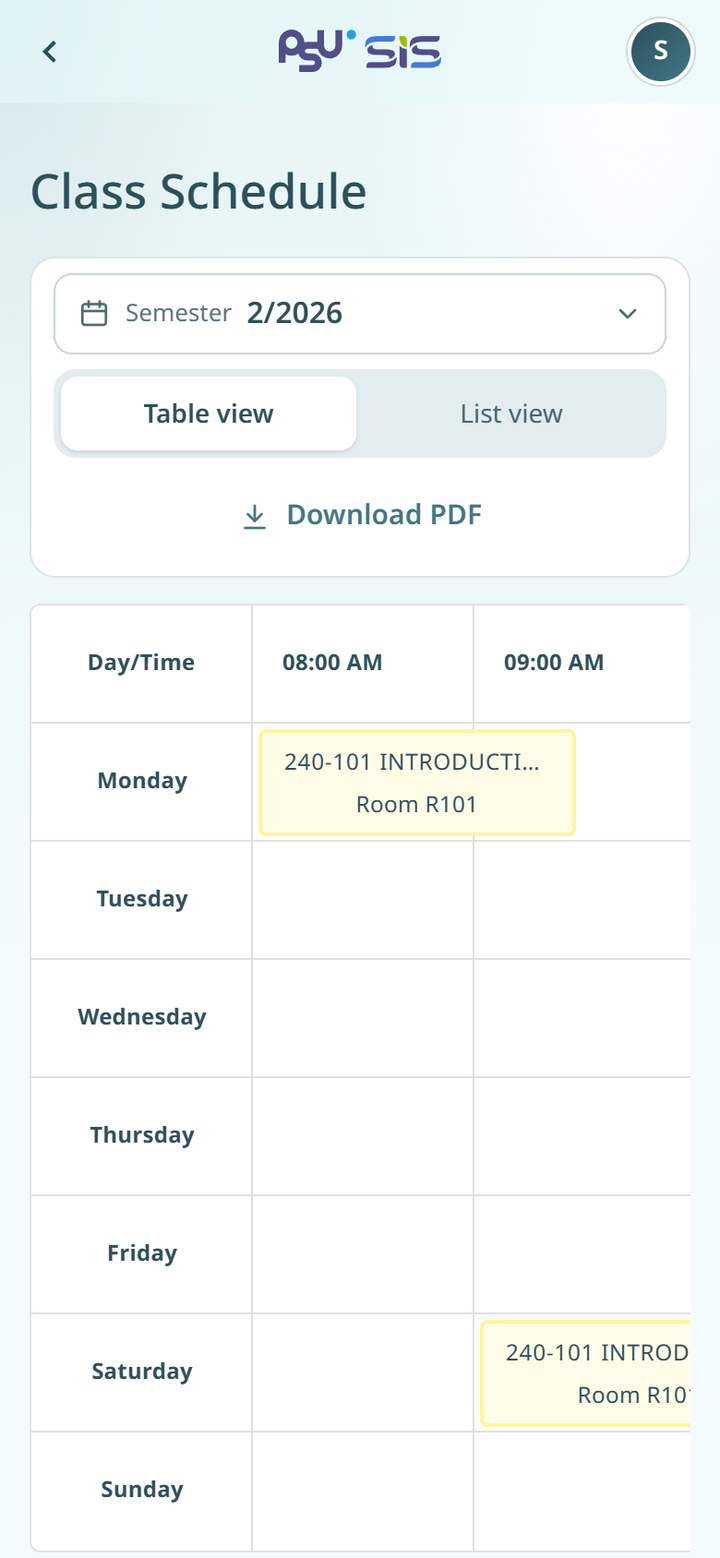
See the days and times of the subjects you enrolled in, and save your timetable as an image.
## See your timetable
1. Open the ☰ menu and tap **Class Schedule**.
2. The timetable for the current semester opens.
3. To see another semester, tap the **Semester** field.
{% columns %}
{% column width="66%" %}
Desktop
{% endcolumn %}
{% column width="34%" %}
Mobile
{% endcolumn %}
{% endcolumns %}
The page has two views.
* **Table view** shows a grid of days and times. Swipe the grid left to see later times. Below the grid, each subject has a card with the lecturer, day, time and room.
* **List view** shows the subjects as a list.
## Hide a subject or change its colour
On each subject card in **Table view**, you can do the following.
* Tap **Hide** to take the subject off the grid. Tap **Show** to bring it back.
* Tap **Change Color** and choose a colour for that subject in the grid.
When a subject is hidden, a note above the grid says how many subjects are hidden. Tap **Show all** to show every subject again.
## Download your timetable as an image
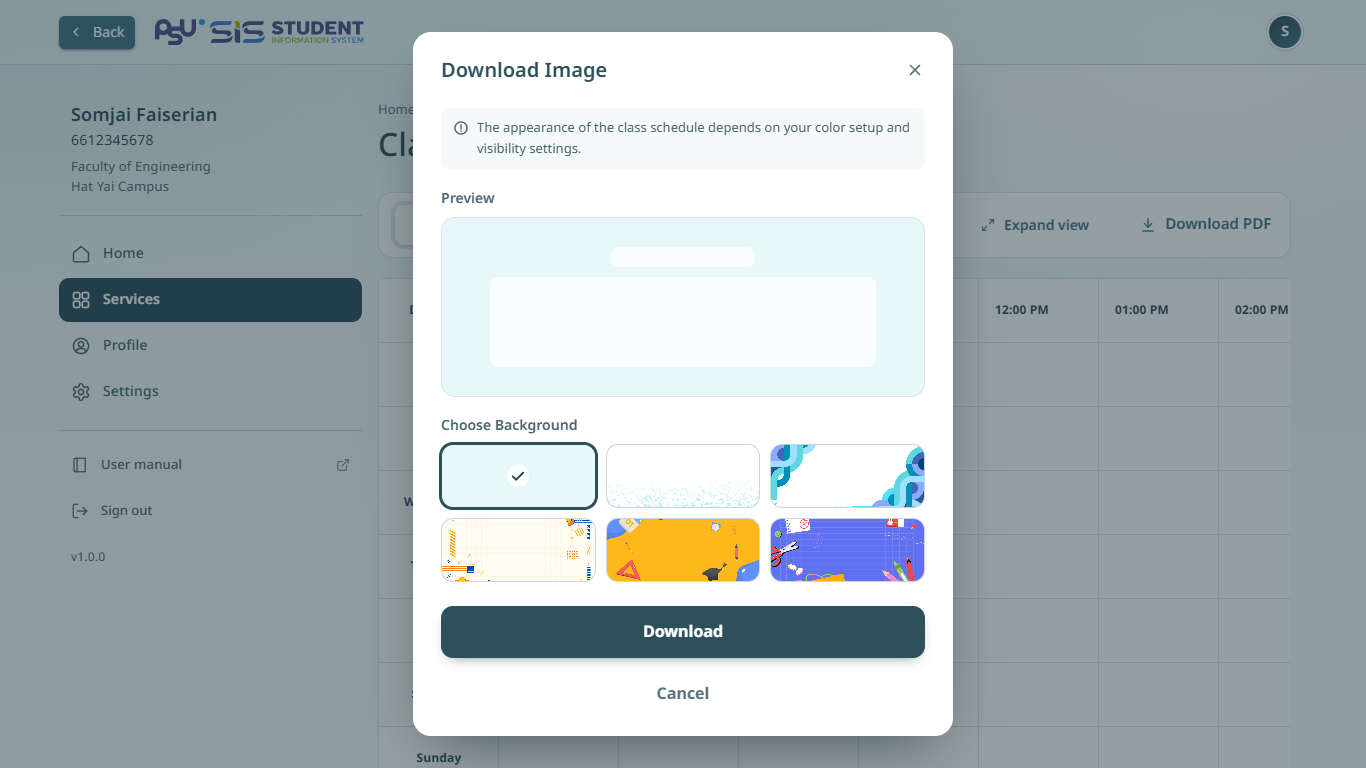
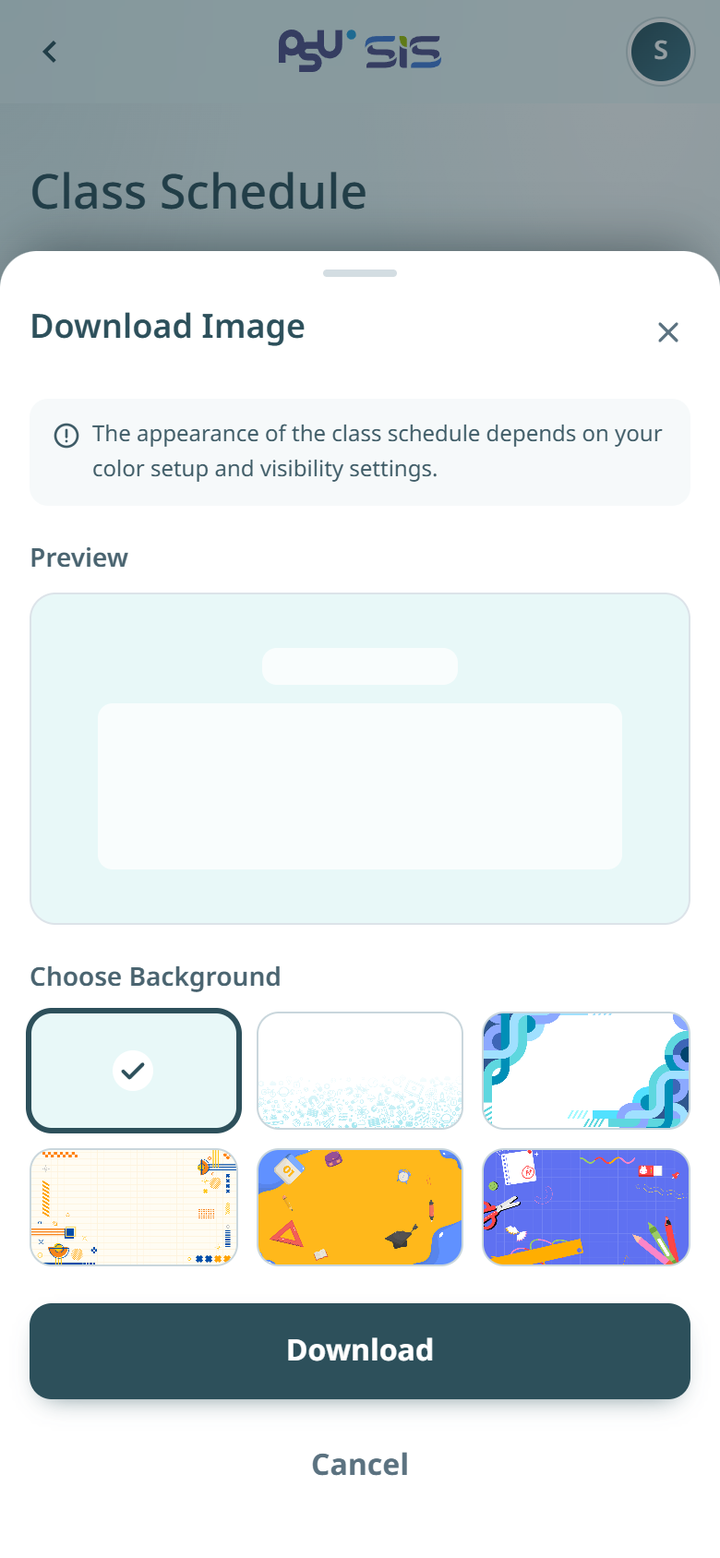
1. Tap **Download PDF**.
2. The **Download Image** window opens.
3. Under **Choose Background**, tap the background you want. The first box is no background. **Preview** shows how the image looks.
4. Tap **Download**. The image is saved to your device.
{% columns %}
{% column width="66%" %}
Desktop
{% endcolumn %}
{% column width="34%" %}
Mobile
{% endcolumn %}
{% endcolumns %}
{% hint style="info" %}
The image uses the colours you set in the grid. A hidden subject is not in the image. No background gives a .png file. A background gives a .jpg file.
{% endhint %}
## No timetable yet
If you have not enrolled yet, the page shows **No timetable yet**. Tap **Go to enrollment** to open [Enrollment](/sis/manual/en/enrollment/enrollment.md).
If you enrolled but your subjects have no class times yet, the page shows a message such as **Semester 2/2026 has no class times yet**.