> For the complete documentation index, see [llms.txt](https://psu-sis-team.gitbook.io/sis/llms.txt). Markdown versions of documentation pages are available by appending `.md` to page URLs; this page is available as [Markdown](https://psu-sis-team.gitbook.io/sis/manual/en/enroll-and-pay.md).
# Pay your fees and enroll
This page sums up a whole semester, from paying the fee to confirming your enrollment. Each step links to the page that explains it in detail.
## Steps at a glance
1. Top up your UniPayX wallet so it covers the fee.
2. Pay the semester fee on the **Pay tuition** page.
3. Tap **Enter enrollment**, then search for subjects.
4. Choose a section and add it to your cart.
5. Tap **Confirm enrollment** once for every subject in your cart.
## When you pay
| Case | When you pay |
| -------------------------------------------- | -------------------------------------------------------------------------------------------------- |
| Flat-rate fee, semesters 1 and 2 | Pay in full first. Then you can enter enrollment. |
| Yearly registration | Pay 50% or 100% of the academic year fee. Paying 50% is enough to enroll. |
| Summer semester | Nothing to pay in advance. The system charges your wallet when you confirm enrollment, by credits. |
| Subjects with a special fee, such as 890-901 | The system charges that fee when you confirm enrollment. |
If you have a scholarship, a student loan or a deferral, you pay only what is left after it. If it covers the whole fee, tap **Confirm use of entitlement for the fee** before you enroll. See [Scholarships, loans and confirming your entitlement](/sis/manual/en/payment/payment/scholarship-acknowledgement.md).
To see when each fee is charged, read [How payment works](/sis/manual/en/payment/payment/how-payment-works.md).
## 1. Pay the semester fee
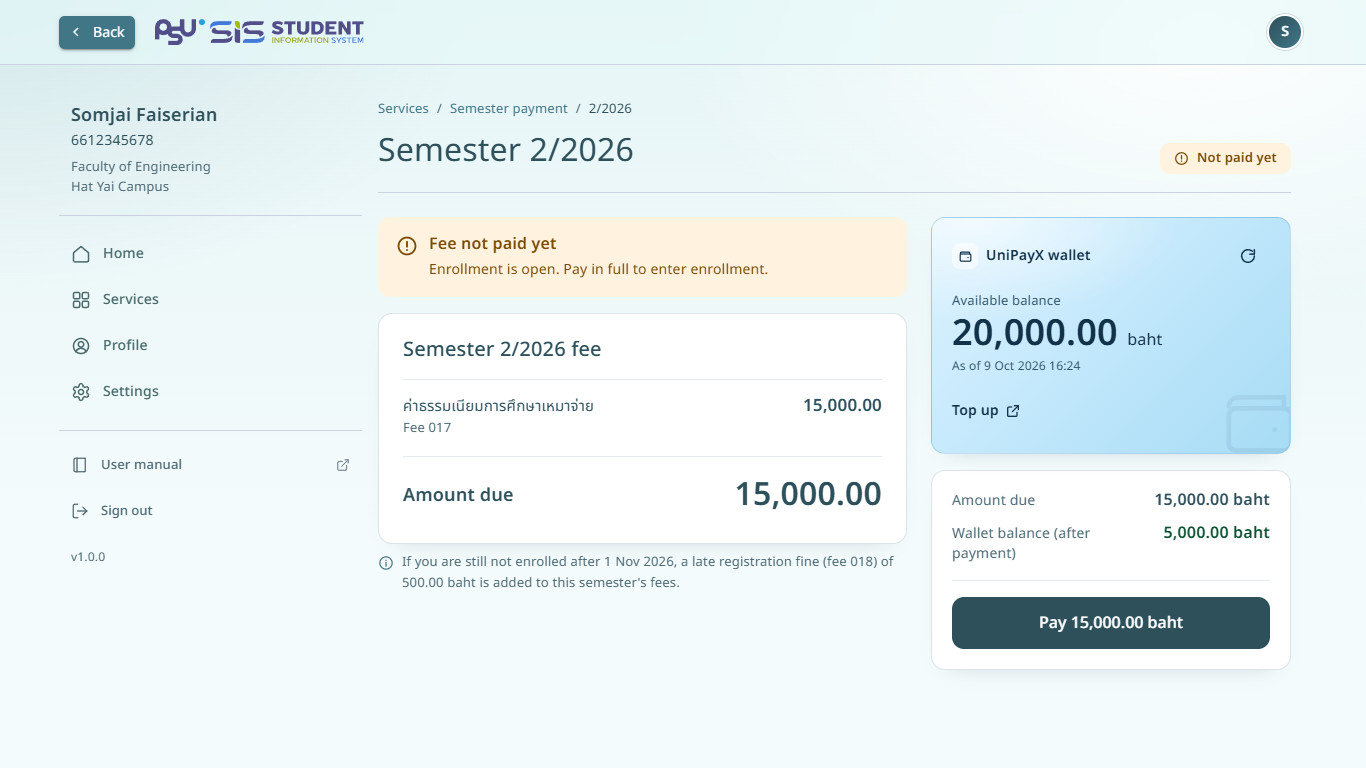
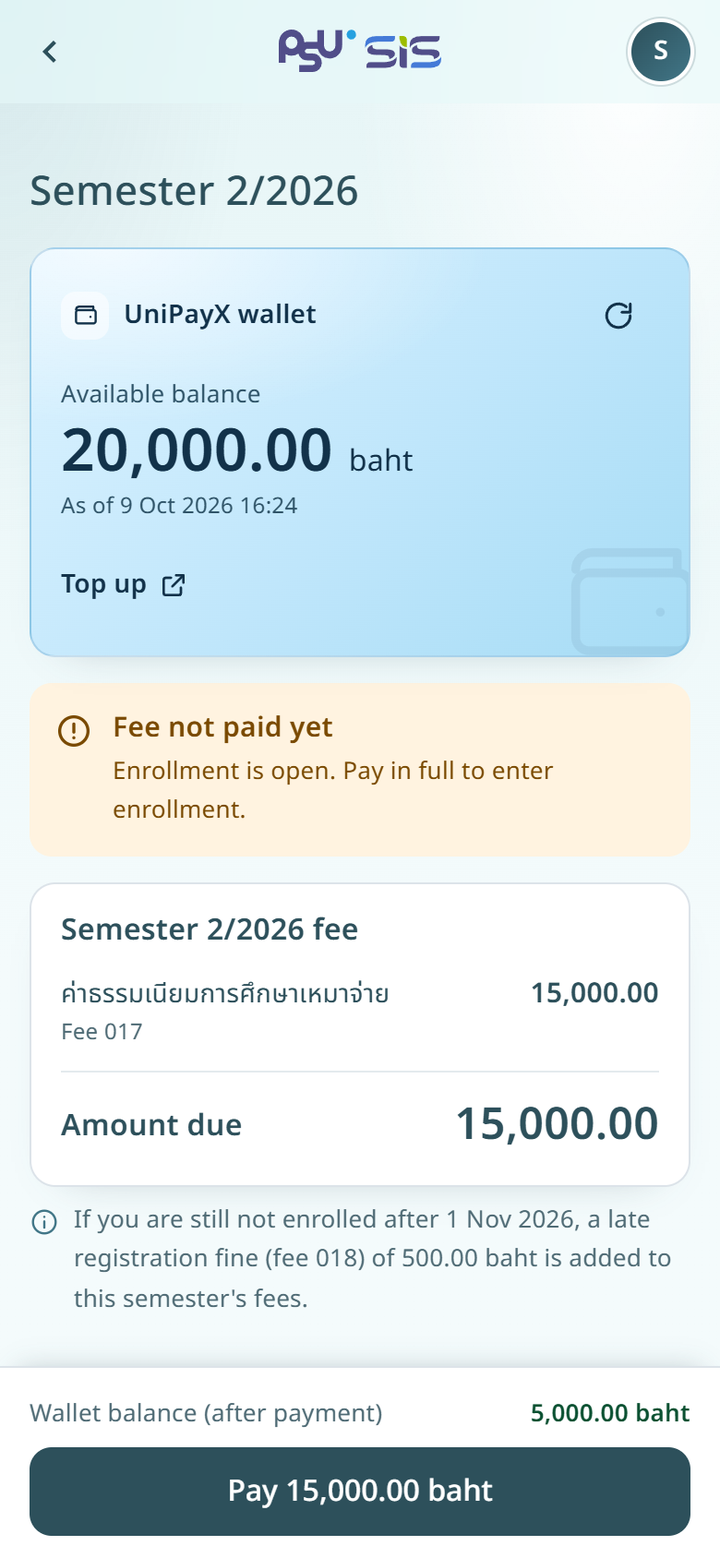
1. On the home page, tap **Go to payment** on the fee payment card, or tap **Pay fees** under **Services**.
2. Check the **Amount due** and the balance on the **UniPayX wallet** card.
3. If the balance is not enough, tap **Top up**. The UniPayX top-up page opens. When you finish, UniPayX brings you back to the same SIS page and your balance is read again. See [Top up your UniPayX wallet](/sis/manual/en/payment/payment/top-up.md).
4. Tap the pay button, check the **Confirm payment** window, then confirm.
5. Tap **Save as image** to keep your proof of payment, then tap **Done**.
{% columns %}
{% column width="66%" %}
Desktop
{% endcolumn %}
{% column width="34%" %}
Mobile
{% endcolumn %}
{% endcolumns %}
The full steps, and what each error message means, are in [Pay the semester fee](/sis/manual/en/payment/payment/pay-semester-fee.md).
{% hint style="info" %}
The proof of payment is not a receipt. The receipt is issued after the semester's enrollment period ends.
{% endhint %}
{% hint style="warning" %}
If the page shows **Checking your payment**, do not pay again. Wait a moment, then tap **Check status again**. You cannot enter enrollment until the check finishes.
{% endhint %}
## 2. Enroll
1. Tap **Enroll in Subjects** in the menu.
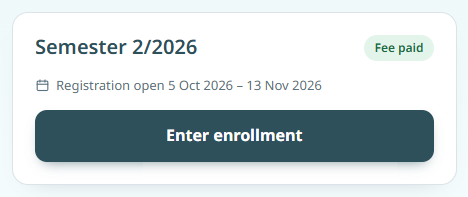
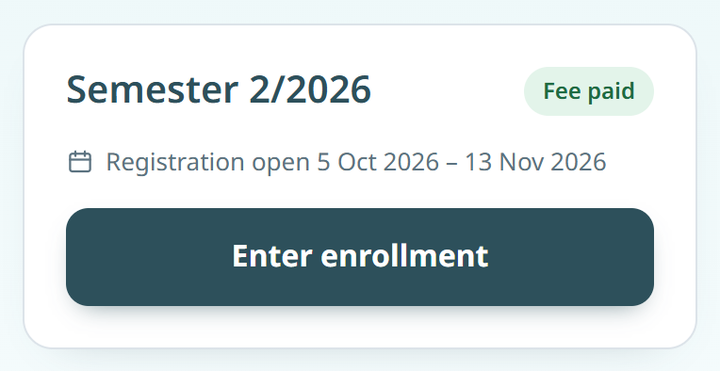
2. On the card of a semester marked **Fee paid**, tap **Enter enrollment**. See [Before you enroll](/sis/manual/en/enrollment/enrollment/before-you-enroll.md).
3. Tap **Add subject**, then search by subject code or name. See [Search for subjects](/sis/manual/en/enrollment/enrollment/search-subjects.md).
4. Tap **Select now**, choose the registration type, then tap **Add to cart**. See [Your cart](/sis/manual/en/enrollment/enrollment/cart.md).
5. On the **Cart** tab, tap **Confirm enrollment**, then confirm again in the window that opens. See [Confirm your enrollment](/sis/manual/en/enrollment/enrollment/confirm.md).
{% columns %}
{% column width="66%" %}
Desktop
{% endcolumn %}
{% column width="34%" %}
Mobile
{% endcolumn %}
{% endcolumns %}
To enroll in one subject without the cart, see [Enroll in a subject now](/sis/manual/en/enrollment/enrollment/one-click.md).
{% hint style="warning" %}
Once you confirm your first subject, you can no longer refund the semester fee yourself. The receipt is issued after the enrollment period ends. See [Refunds](/sis/manual/en/payment/payment/refunds.md).
{% endhint %}
### When a fee is charged at confirm
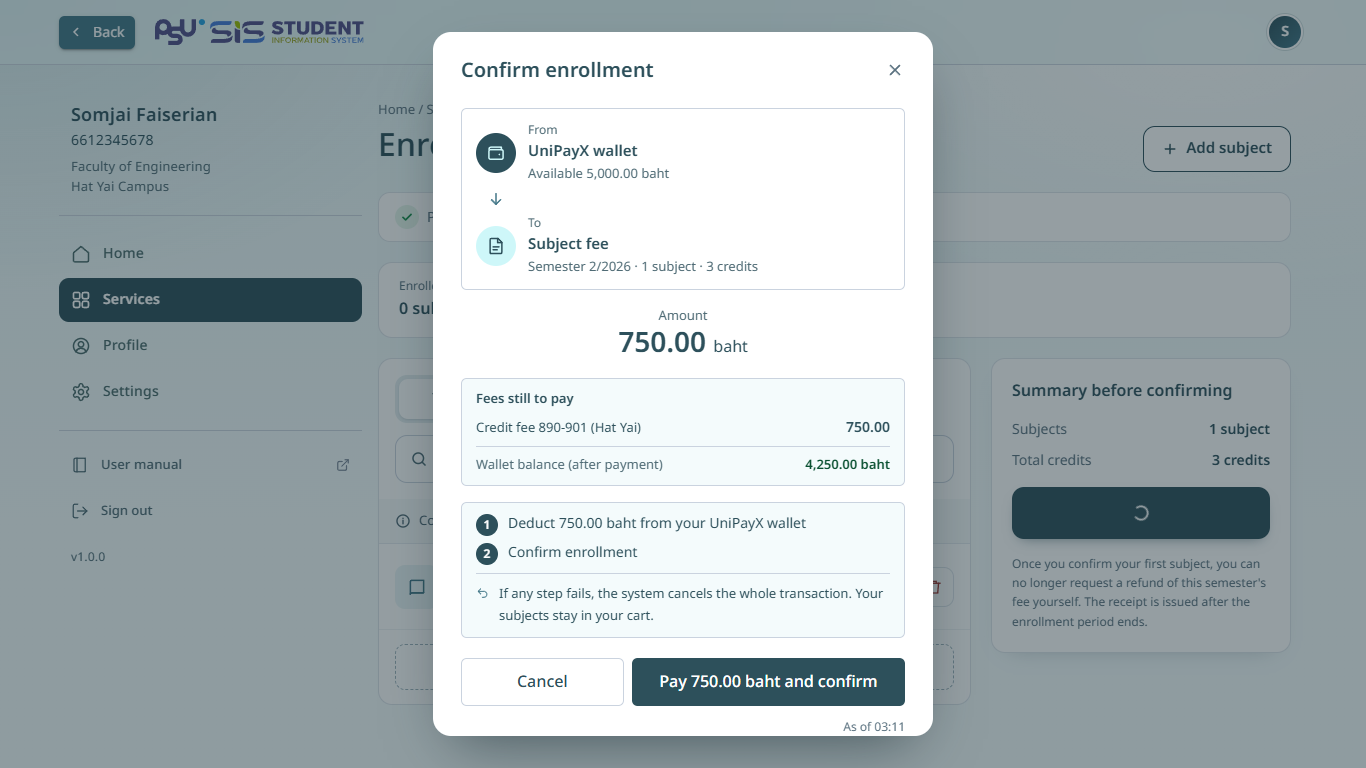
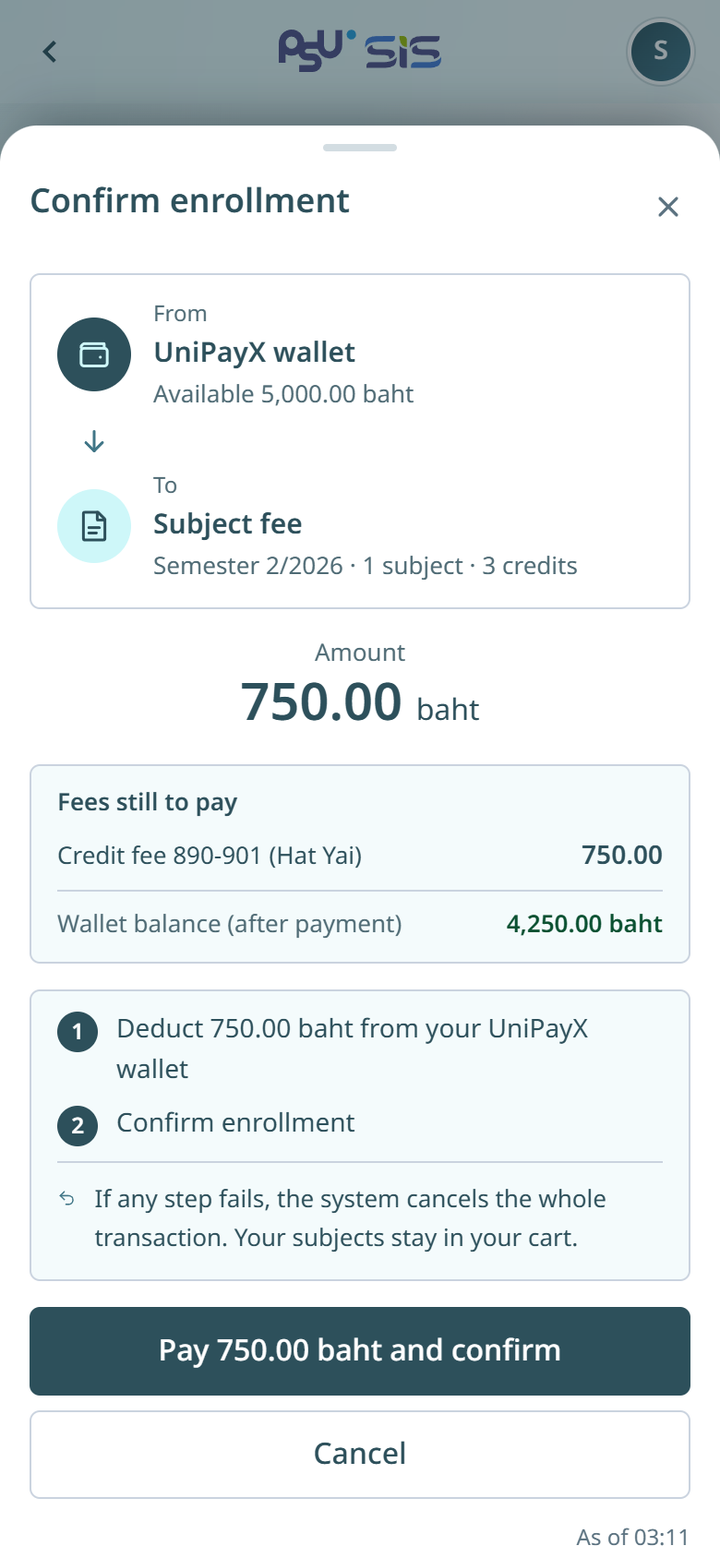
If a subject in your cart has a special fee, the button in the confirm window shows the amount, for example **Pay 750.00 baht and confirm**. The system charges your wallet, then confirms your enrollment. See [Subjects with a special fee](/sis/manual/en/enrollment/enrollment/special-fee-subjects.md).
{% columns %}
{% column width="66%" %}
Desktop
{% endcolumn %}
{% column width="34%" %}
Mobile
{% endcolumn %}
{% endcolumns %}
If your wallet is short, the button becomes **Top up wallet to confirm** and your subjects stay in your cart. After the top-up, the system brings you back to the enrollment page and opens the confirm window again. See [Not enough money in your wallet](/sis/manual/en/enrollment/enrollment/not-enough-money.md).
## Once you are enrolled
When the system shows **Enrollment complete**, tap **View enrolled subjects**. Your subjects are on the **Enrolled** tab, and the enrollment page shows the **Enrolled** badge. For the whole semester, see [Registration result](/sis/manual/en/enrollment/enrollment/registration-result.md).
To withdraw a subject later, see [Withdraw a subject](/sis/manual/en/enrollment/enrollment/withdraw.md).
## When a fee is added after you paid
If the Registrar's Office adds a fee after you paid, the semester shows **More to pay**. What you paid and the subjects you confirmed stay. Pay only the added part, and enrollment opens again. See [Additional fees](/sis/manual/en/payment/payment/additional-fee.md).
## Yearly registration
Yearly-registration students pay the fee for the whole academic year on one page. Choose **Pay 50% (installment 1)** or **Pay in full (100%)**. Paying 50% lets you enroll right away. See [Yearly registration](/sis/manual/en/payment/payment/yearly.md).
## If something goes wrong
* To get back money you paid, see [Refunds](/sis/manual/en/payment/payment/refunds.md).
* To see your payments and proofs of payment, see [Payment history](/sis/manual/en/payment/payment/history.md).
* If the fee page says the Registrar's Office must check your fee, or that you cannot pay in advance, see [The semester page](/sis/manual/en/payment/payment/semester-page.md).
* For other questions, see [FAQ](/sis/manual/en/help/faq.md).
* For questions about fees and enrollment rules, contact the Registrar's Office. See [Contact the Registrar](/sis/manual/en/services/contacts.md).